Essential CSS/HTML Lists Styling Techniques
Nov, 04This is a syndicated post. Read the original at Noupe Design Blog » CSS2009-11-04.
  
|
By Justin Johnson
Certain elements in HTML lend themselves to many situations when marking up a website, one of the more useful of these elements is the HTML list. Using lists, a developer can markup horizontal navigation, dropdown navigation, a list of links, and even scrolling content panels (with the help of Javascript). These features can help developers build new sites and applications as well as integrate new content into existing applications.
Unordered/Ordered Lists
Unorderd lists are recommened to be used with a list of items where order is irrelevant. With unordered lists (and all lists actually) the W3C discourage authors from using lists purely as a means of indenting text. This is a stylistic issue and is properly handled by style sheets.
Ordered lists on the other hand are encouraged to be used when order matters for the list elements, example: A cooking recipe or turn-by-turn directions. For the examples in this article it is possible to substitute an ol for a ul or vice-versa. That choice is left to your discretion.
In it’s simplest form an ordered list or unordered list (referred to going forward interchangably as ‘a list’) would contain similar markup to the following:
<!-- an unordered list example --> <ul> <li><a href="#">List Item One</li> <li><a href="#">List Item Two</li> <li><a href="#">List Item three</li> <li><a href="#">List Item Four</li> <li><a href="#">List Item Five</li> </ul> <!-- an ordered list example --> <ol> <li><a href="#">List Item One</li> <li><a href="#">List Item Two</li> <li><a href="#">List Item three</li> <li><a href="#">List Item Four</li> <li><a href="#">List Item Five</li> </ol>
Examining the box model for a list reveals the following:
In short both ul’s and ol’s are considered block level elements, as are each one of their child li tags. As such we can apply margin and padding to both items on all four sides. In regards to the bullet point for ul’s (or the numeral for ol’s) a left margin will move both the bullet/numeral to the right as well as the text, while padding while increase the space between the bullet/numeral and the content of the li.
The Basics of Styling Lists
Styling a list to be used as it is intended, a list, is a fairly straightforward task. To replace the bullets in an ol with a sample graphic icon you could do something like the following:
HTML
<ul> <li><a href="#">List Item One</li> <li><a href="#">List Item Two</li> <li><a href="#">List Item three</li> <li><a href="#">List Item Four</li> <li><a href="#">List Item Five</li> </ul>
CSS
ul li{
	list-style:none; /* removes the default bullet */
	background: url(https://www.cssheaven.org/files/images/icon-for-li.gif) no-repeat left center;
	/*adds a background image to the li*/
	padding-left: 10px
	/* this would be the width of the background image, plus a little more to space things out properly */
	}
Basic styling to the numbers of an ordered list is just as straightforward. Consider the following list and CSS.
<ol> <li><a href="#">List Item One</li> <li><a href="#">List Item Two</li> <li><a href="#">List Item three</li> <li><a href="#">List Item Four</li> <li><a href="#">List Item Five</li> </ol>
CSS
With the CSS we will change the font of the ol to change the font of the numerals, then we’ll target the a tags inside our li’s to change their font in order to give them
a different visual representation than the numerals.
ol{
	font-family: Georgia, "Times New Roman", serif;
	color: #ccc;
	font-size: 16px;
}
ol li a{
	font-family: Arial, Verdana, sans-serif;
	font-size: 12px;
}
More Advanced Uses for List
Accessible-Image Tab Rollovers
While this is an older article, published in 2003, the information contained in it is very valuable. Dan Cedarholm of SimpleBits explains how to create an image based navigation with rollovers using only CSS, HTML and images. If you haven’t read this article before it’s definately worth reading. The code below is a summarized version, but Dan offer’s a full explanation of the code on his site SimpleBits
CSS
<ul id="nav"> <li id="thome"><a href="#">Home</li> <li id="tservices"><a href="#">Our Services</li> <li id="tabout"><a href="#">About Us</li> </ul>
HTML
#nav {
margin: 0;
padding: 0;
height: 20px;
list-style: none;
display: inline;
overflow: hidden;
}
#nav li {
margin: 0;
padding: 0;
list-style: none;
display: inline;
}
#nav a {
float: left;
padding: 20px 0 0 0;
overflow: hidden;
height: 0px !important;
height /**/:20px; /* for IE5/Win only */
}
#nav a:hover {
background-position: 0 -20px;
}
#nav a:active, #nav a.selected {
background-position: 0 -40px;
}
#thome a  {
width: 40px;
background: url(https://www.cssheaven.org/files/blog/home.gif) top left no-repeat;
}
#tservices a  {
width: 40px;
background: url(https://www.cssheaven.org/files/blog/services.gif) top left no-repeat;
}
#tabout a  {
width: 40px;
background: url(https://www.cssheaven.org/files/blog/about.gif) top left no-repeat;
}
Examples
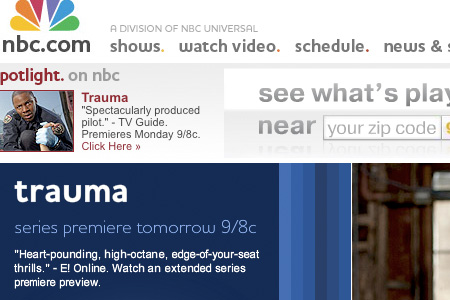
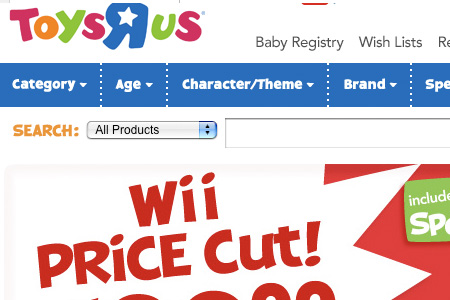
Note that some of these examples use a modified version of this technique in which one large image (aka an image sprite) is used instead of individual graphics for each nav item.


Fast Company
CSS “Sliding Doors”
While the above method is great if you know what your navigation items are going to be, it doesn’t present a problem if you’re using a content management or blogging system like WordPress that allows you to create and rename pages at will. The following technique has been around for a while but is just as useful, if not more useful than the previous technique. Douglas Bowman wrote an article for A List Apart in 2003 titled: Sliding Doors of CSS
This technique uses two background images that can tile horizontally to encompass a long page title or shrink horizontally to encompass a short page title. Our HTML markup for the list is very similar to the above technique. Our main changes will center around how we style the list with CSS.
<div id="header">
<ul>
<li><a href="#">Home</li>
<li id="current"><a href="#">Services</li>
<li><a href="#">About Us</li>
</ul>
</div>
#header {
float:left;
width:100%;
background:#DAE0D2 url("https://www.cssheaven.org/files/blog/bg.gif") repeat-x bottom;
font-size:93%;
line-height:normal;
}
#header ul {
margin:0;
padding:10px 10px 0;
list-style:none;
}
#header li {
float:left;
background:url("https://www.cssheaven.org/files/blog/left.gif") no-repeat left top;
margin:0;
padding:0 0 0 9px;
}
#header a {
float:left;
display:block;
background:url("https://www.cssheaven.org/files/blog/right.gif") no-repeat right top;
padding:5px 15px 4px 6px;
text-decoration:none;
font-weight:bold;
color:#765;
}
/* Commented Backslash Hack
hides rule from IE5-Mac \*/
#header a {float:none;}
/* End IE5-Mac hack */
#header a:hover {
color:#333;
}
#header #current {
background-image:url("https://www.cssheaven.org/files/blog/left_on.gif");
}
#header #current a {
background-image:url("https://www.cssheaven.org/files/blog/right_on.gif");
color:#333;
padding-bottom:5px;
}
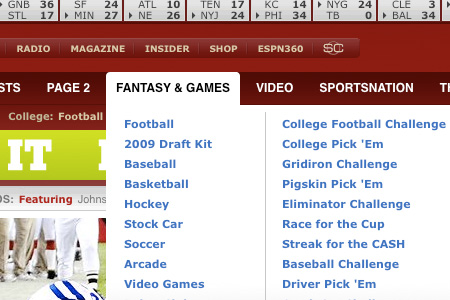
Examples



Content Scrollers
One trend that is becoming increasingly more and more popular is the concept of content scrollers or sliders. These block level elements cycle through (or are toggled via user interaction) a predetermined set of content which can be any web content. This used to be a technique that was reserved soley for Flash, however, with the advent of Javascript libraries such as jQuery, mooTools, and Prototype it is now possible to do this strictly with HTML/Javascript/CSS. Our code snippet below is an example using jQuery and a jQuery plugin called jCarousel Lite.
HTML
<button class="prev">Prev</button>
<button class="next">Next</button>
<div class="anyClass">
    <ul>
        <li><img src="someimage" alt="" width="100" height="100" ></li>
        <li><img src="someimage" alt="" width="100" height="100" ></li>
        <li><img src="someimage" alt="" width="100" height="100" ></li>
        <li><img src="someimage" alt="" width="100" height="100" ></li>
    </ul>
</div>
        $(function() {
            $(".anyClass").jCarouselLite({
                btnNext: ".next",
                btnPrev: ".prev"
            });
        });
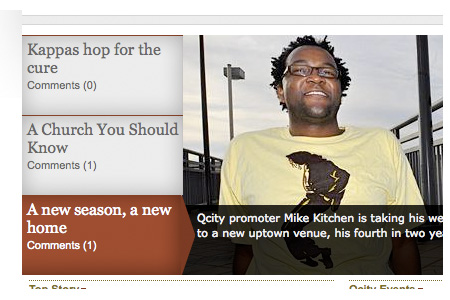
Examples of this technique can be found below. Note that not all of the examples below use jCarousel Lite, but they do portray a similar technique/effect.


Ordered Lists: A Side Note
While ol and ul can technically be considered interchangable, an ol was designed to be used for items where order is important. One great example of this could be a list of links that shows a user where they have been, otherwise known as “breadcrumbs”. In the following list you’ll find some step by step tutorials for building CSS breadcrumbs.
Resources for CSS BreadCrumbs
- Simple CSS Breadcrumbs using a background image
- Simple Scalabe CSS Based Breadcrumbs
Lists & CSS Resources
The following resources discuss technique and theory in greater detail in regards to CSS and HTML lists.
- A List Apart: CSS Design: Taming Lists
- CSS Tabs & Navigation Showcase
- CSS Menu Builder
- Easy Slider jQuery Plugin
About the author
Justin Johnson is Rich Media / UI Developer at E-dreamz an established Web Development company in Charlotte, NC. He spends his days meticulously hand crafting CSS and Javascript as well as tinkering with PHP, MySQL, SQL, ColdFusion & Flex. Justin spends his spare time with his wife and son.


What a sad looking blog post!
Please add some comments.
Add A Comment